User Manual for Odoo Advance Product Multi Barcode Module
Introduction
Odoo Advance Product Multi Barcode Module helps you assign multiple barcodes to a single product or product variant for seamless operations across Odoo.
It is designed to improve barcode flexibility and enhance multi-barcode usability across Odoo.
With this module, you can store multiple barcodes, search using any barcode, and reduce operational delays caused by limited barcode fields.
Features
- Assign multiple unique barcodes to products and variants with Odoo Advance Product Multi Barcode Module.
- Store multiple barcodes using an Odoo one-to-many structure
- Enable barcode-based searches in Odoo order lines.
- Search products in sales and purchase orders using any barcode
- Search product variants directly from order lines.
- Support barcode search in stock operations and inventory adjustments.
- Prevent duplicate barcodes across products and variants. Raise validation errors for repeated barcode entries
Installation Of Odoo Advance Product Multi Barcode Module
- Once you purchase the App from the Webkul store, you will receive a link to download the module’s zip file.
- Extract the file on your system after the download finishes. As a result, you will be able to see a folder named ‘advance_product_multi_barcode.’
- Copy and paste this folder inside your Odoo Add-Ons path.
- Now, open Odoo App and click on the Settings menu. Here, click on Activate Developer Mode.
- Then, open the Apps menu and click on ‘Update Modules List.’
- In the search bar, remove all the filters and search ‘advance_product_multi_barcode.’
- You will be able to see the module in the search results. Click on ‘Install’ to install it.
Workflow
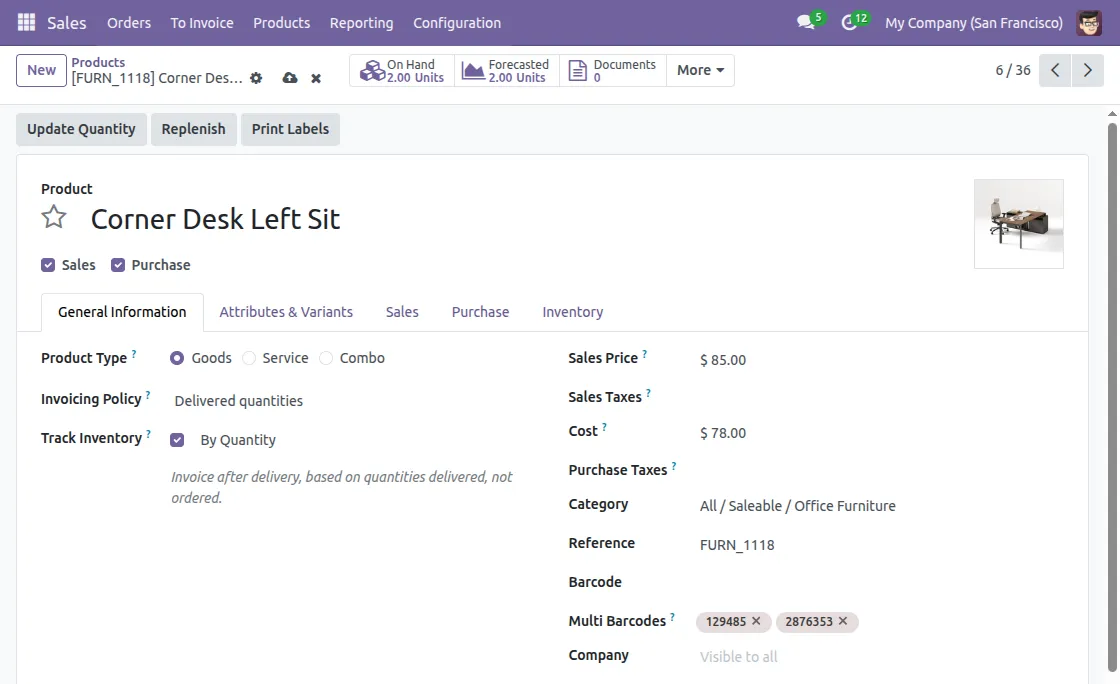
- Go to Odoo and open the Sales module. Then open any product that does not have variants.


2- You will see a field named Multibarcodes on the product form. Here you can add and manage multiple barcodes easily.

3-If your product has variants, you can also assign multiple barcodes directly to each product variant with Odoo Advance Product Multi Barcode Module.

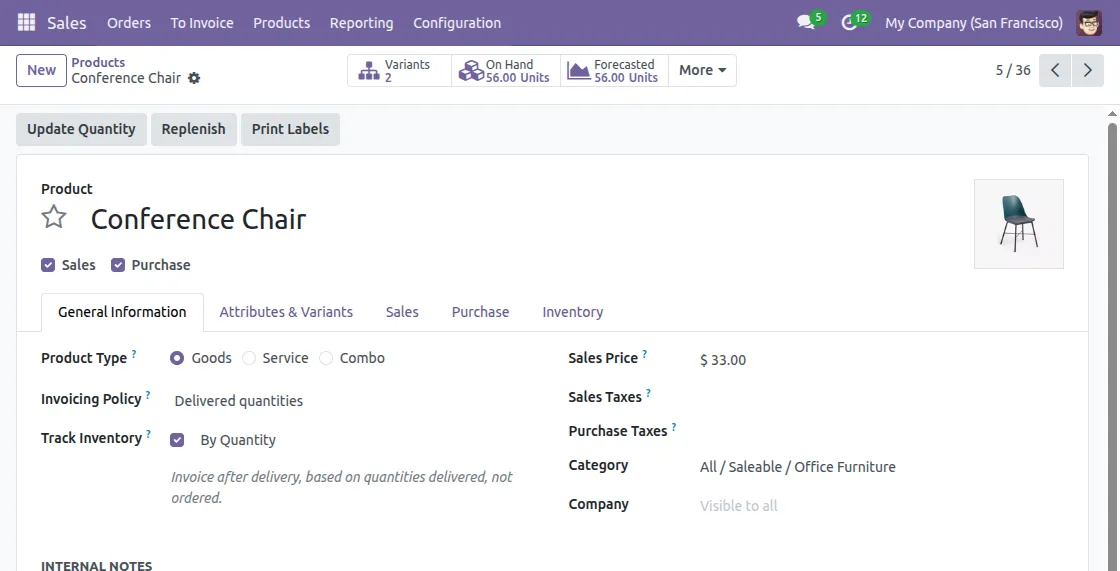
4- Open any product variant of the product and add the required multibarcodes inside the variant in the multibarcode field .


5- Once the barcodes are added, you can search the product in the order line (backend) using any assigned barcode.


6- You can also search for specific product variants using their assigned barcodes with Odoo Advance Product Multi Barcode Module

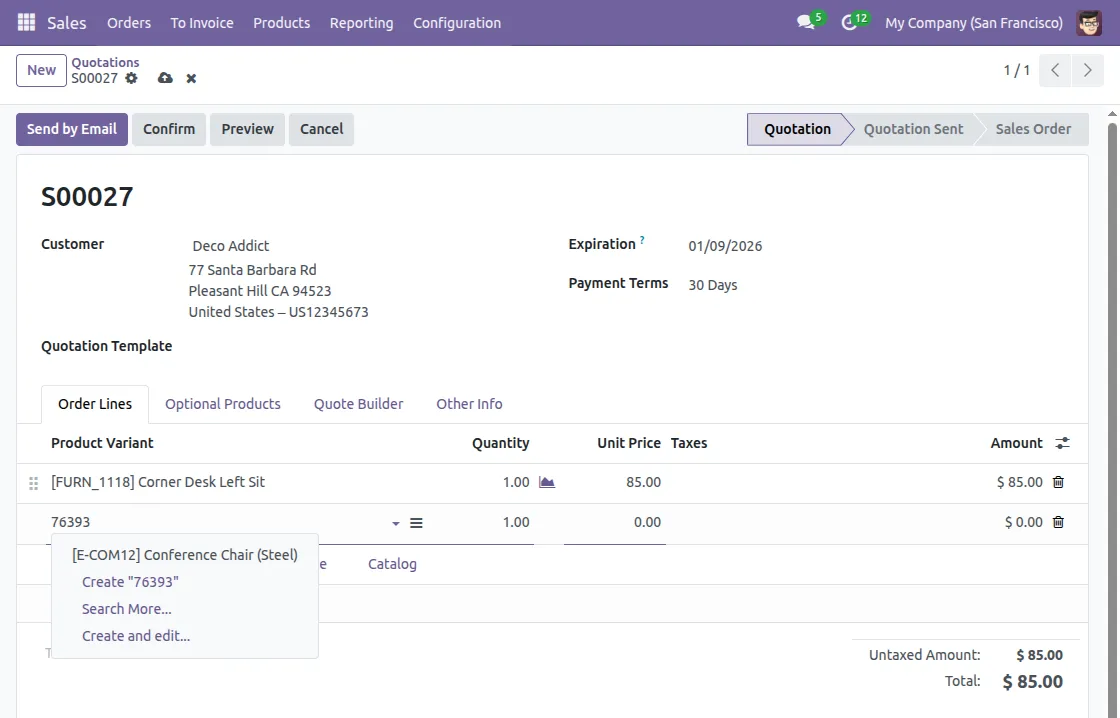
Using our module, you can assign multiple barcodes to both products and variants.
You can search them through barcodes in order lines, invoices, quotations, and other operations.
Need Help ?
Hope you find guide helpful! Please feel free to share your feedback in the comments below.
If you still have any issues/queries, please create a ticket at the UV Desk.
I hope this helps. In case of any further queries, contact us at our mail – support@webkul.com .
Thanks for paying attention!!