User Guide for Adobe Commerce B2B Mobile App
Live Demo
Adobe Commerce B2B Mobile App is designed for Magento stores, enabling businesses to manage B2B operations seamlessly from mobile devices.
Users can access catalogs, pricing, and purchase orders through an intuitive interface. The app integrates with the existing Adobe Commerce infrastructure.
This ensures a smooth and consistent B2B mobile experience.
Features
- Adobe Commerce B2B mobile app for streamlined enterprise purchasing workflows.
- Company account management on mobile with support for users, roles, and permissions.
- Negotiable quote management for reviewing, updating, and approving B2B quotations.
- Purchase order processing with mobile approval capabilities and workflow visibility.
- Requisition list functionality for faster repeat purchasing and bulk procurement.
- Business approval management with access to company-specific workflow rules.
- Company credit tracking and spending visibility directly from mobile devices.
- Quick order capabilities for rapid SKU-based product purchasing.
- Mobile access to essential B2B commerce operations across departments.
- Connected workforce support with anytime, anywhere access to business processes.
- Real-time synchronization with Adobe Commerce B2B store data.
- Secure mobile authentication for enterprise account access.
- Scalable architecture designed for growing B2B organizations.
- Cross-platform availability for Android and iOS business users.
Adobe Commerce B2B Mobile App – Installation
The installation process is simple and similar to standard Magento 2 extensions.
Upload Folder
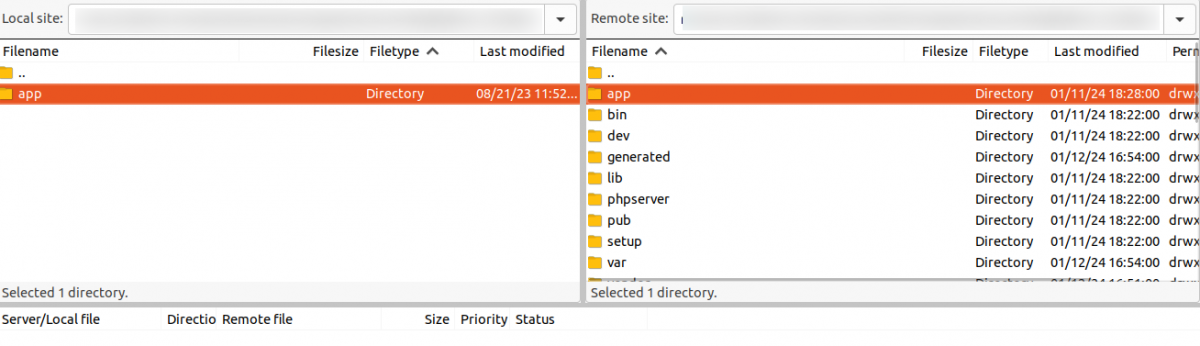
After extracting the module ZIP file, navigate to the src/app directory.
Copy the app folder from this location. Paste the folder into the Magento 2 root directory on your server.

Run Commands
php bin/magento setup:upgrade
php bin/magento setup:di:compile
php bin/magento setup:static-content:deploy
php bin/magento indexer:reindex
php bin/magento cache:flush
Language Translation
To translate the module, go to src/app/code/Webkul/MobikulB2B/i18n.
Rename the file to ar_SA.csv Translate the text after each comma into Arabic.
Save the CSV file after completing the translation.

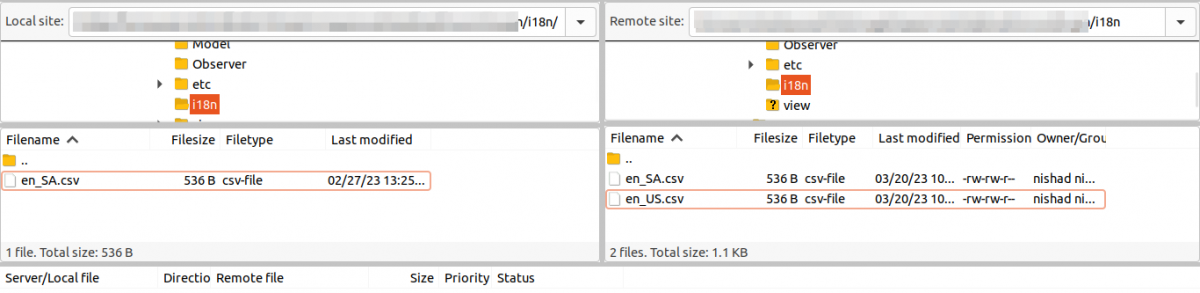
Upload the translated CSV file back to the same i18n directory in your Magento 2 installation.
The module supports both RTL and LTR languages and translates the storefront into Arabic.
You can edit the CSV file as shown in the image below.


Adobe Commerce B2B Mobile App – Admin Configuration
Admin can manage the Mobikul app from the backend in just a few simple set of steps.
The app configuration is managed by the app owner based on business requirements.
Admin can configure the app from Stores > General > Configuration > B2B Features.

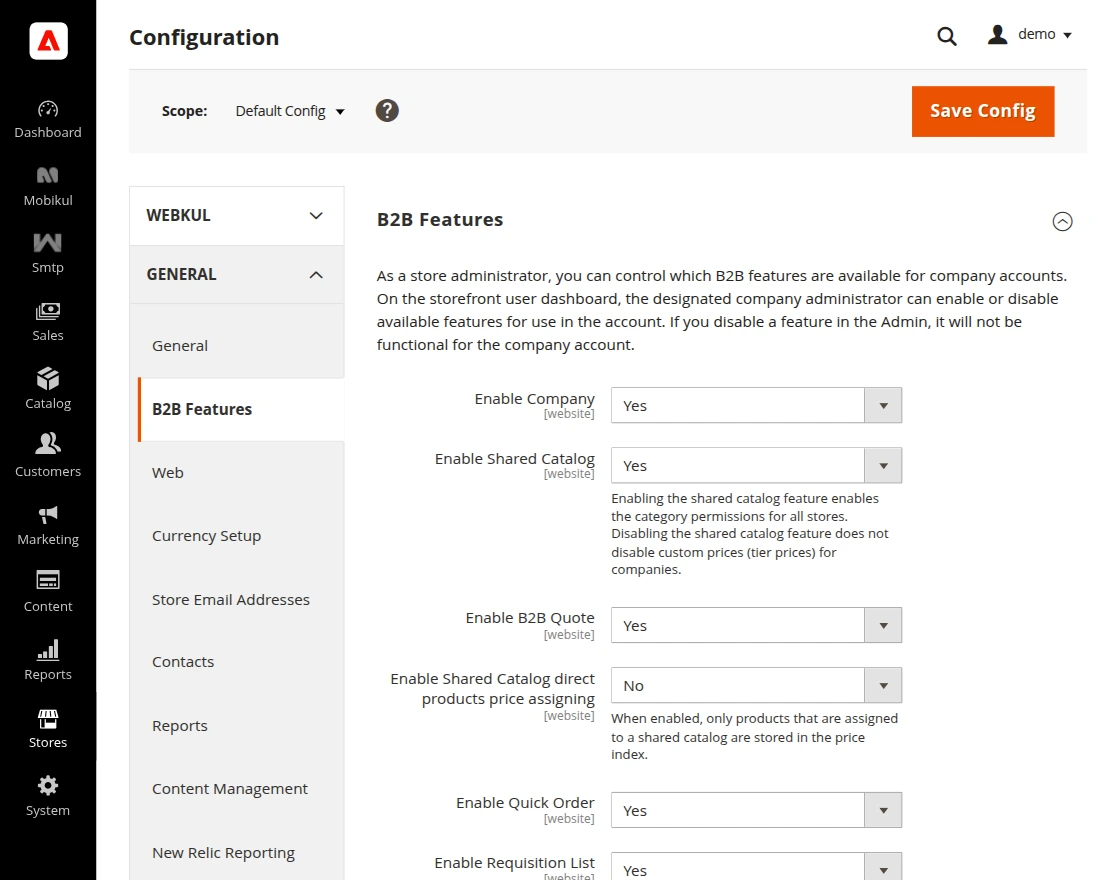
- Enable Company – Manage company accounts and users.
- Enable Shared Catalog – Create company-specific catalogs and pricing.
- Enable B2B Quote – Allow quote requests and negotiations.
- Enable Direct Product Pricing – Set custom product prices within shared catalogs.
- Enable Quick Order – Place orders quickly using SKUs or bulk uploads.
- Applicable Payment Methods – Select the payment methods available to B2B company customers during checkout.
- Applicable Shipping Methods – Choose the shipping methods that company users can use when placing orders.
- Enable Purchase Orders – Allows company users to create and manage purchase orders before placing orders.
- Company-Level Purchase Orders – Admin can enable or disable purchase orders for individual companies.
Create New Company
New Company form allows administrators to create and manage B2B company accounts from the Magento Admin Panel.

Basic Company Information
- Company Name – The name of the company account.
- Status – Defines whether the company account is active or inactive.
- Company Email – Primary email address for company communications.
- Sales Representative – Assigned sales representative responsible for the company account.
Account Information
- Company Legal Name – Official registered business name.
- VAT / TAX ID – Tax identification number used for business transactions.
- Reseller ID – Reseller registration or permit number.
- Comment – Internal notes related to the company.

Company Hierarchy
Company Structure – Displays parent and child company relationships within the organization.
Legal Address
Street Address, City, Country, State, ZIP Code, Phone Number – Official business address
details.
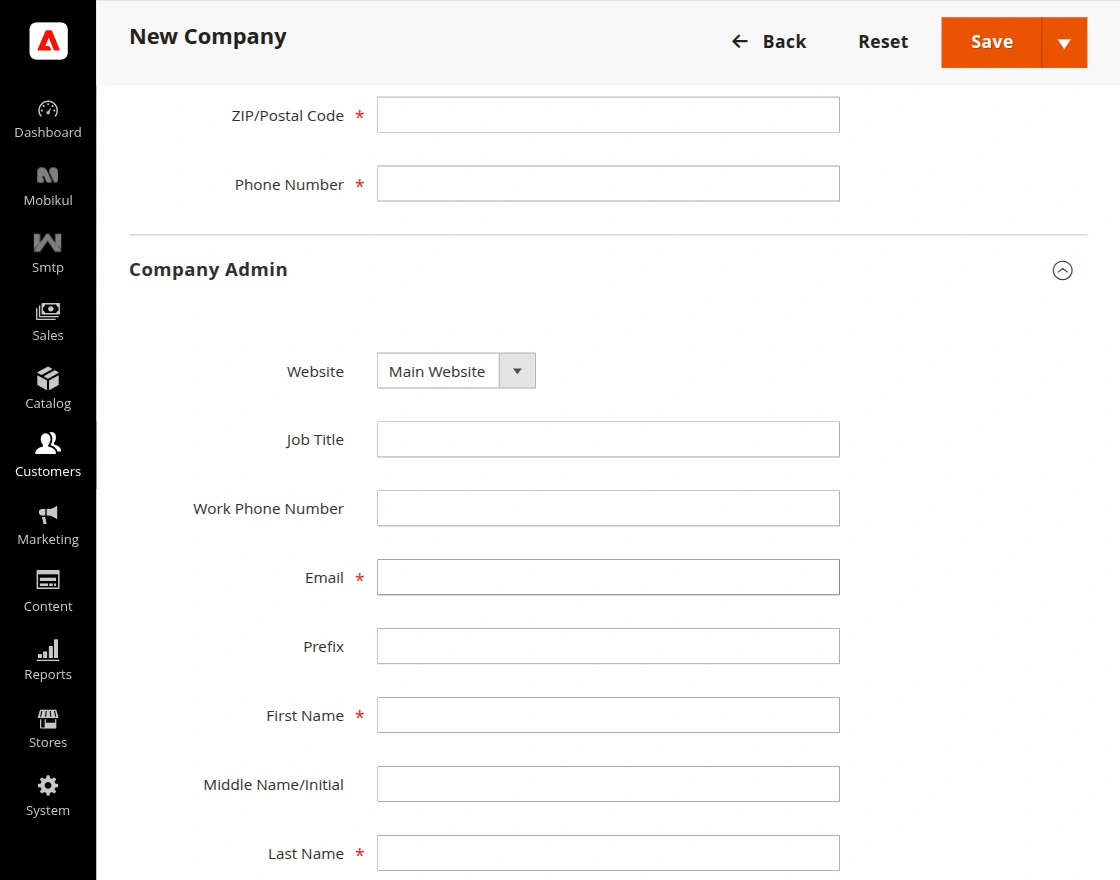
Company Admin
- Website – Website/store view associated with the company.
- Job Title & Work Phone Number – Contact details of the company administrator.
- Email & Name Fields – Administrator account information.
- Send Welcome Email From – Store view used for welcome email notifications.
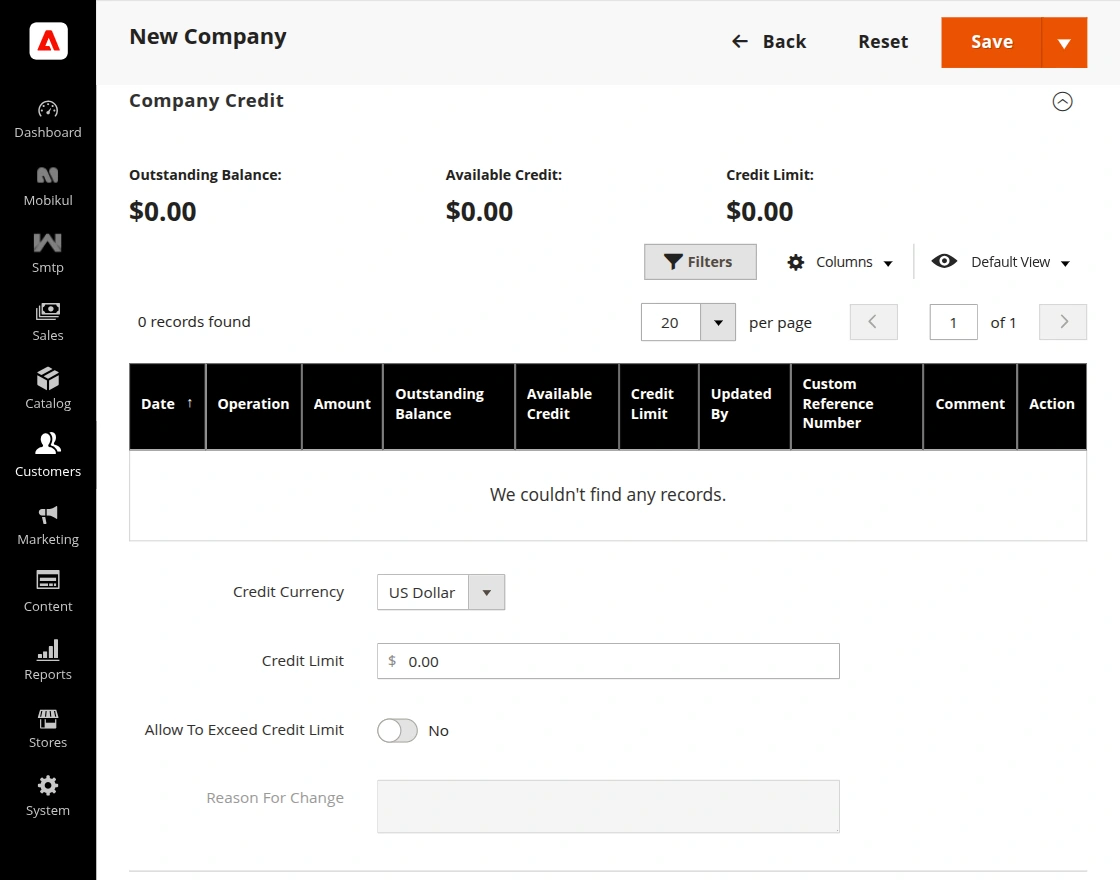
Company Credit
- Outstanding Balance – Current amount owed by the company.
- Available Credit – Remaining credit available for purchases.
- Credit Limit – Maximum credit assigned to the company.
- Credit Currency – Currency used for company credit transactions.
- Allow to Exceed Credit Limit – Allow purchases that exceed the assigned credit limit.
Advanced Settings
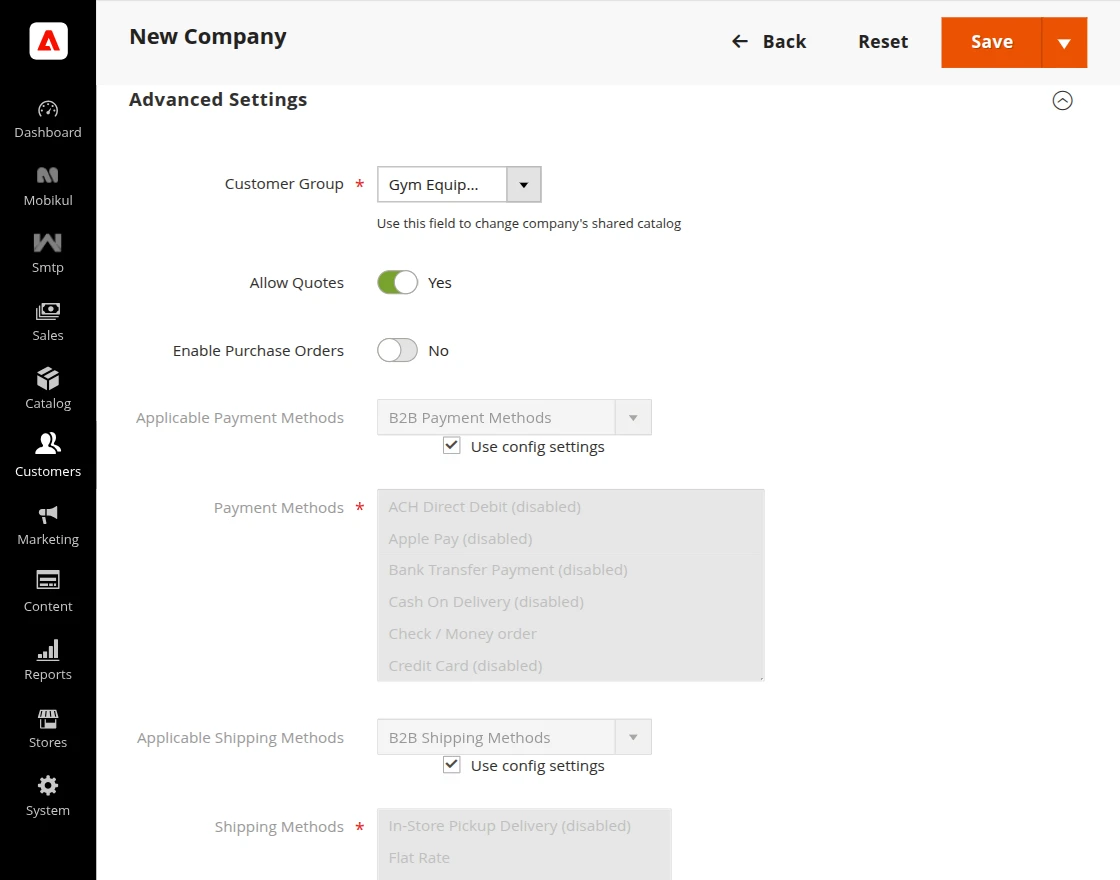
- Customer Group – Assigns the company to a customer group or shared catalog.
- Allow Quotes – Enables quote requests and negotiations.
- Enable Purchase Orders – Allows the company to create purchase orders.
- Applicable Payment Methods – Restricts available payment methods for the company.
- Applicable Shipping Methods – Restricts available shipping methods for the company.
Shared Catalogs and Pricing
The New Shared Catalog section allows merchants to create a catalog with customized product visibility and pricing for specific customer groups or companies.
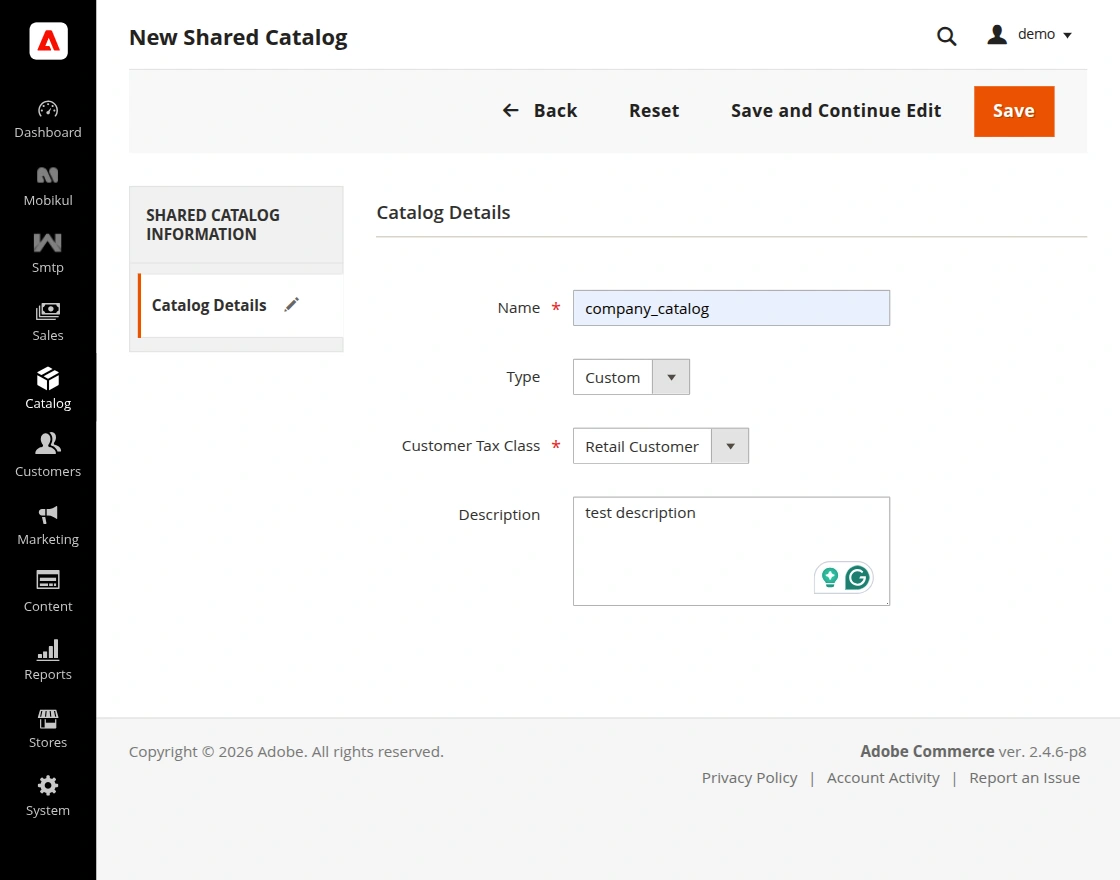
- Name – The unique name used to identify the shared catalog.
- Type – Defines the catalog type. A Custom catalog is assigned to specific companies and can contain personalized products and pricing.
- Customer Tax Class – Determines the tax rules applied to customers assigned to this catalog.
- Description – An optional field used to provide additional details about the catalog’s purpose or audience.
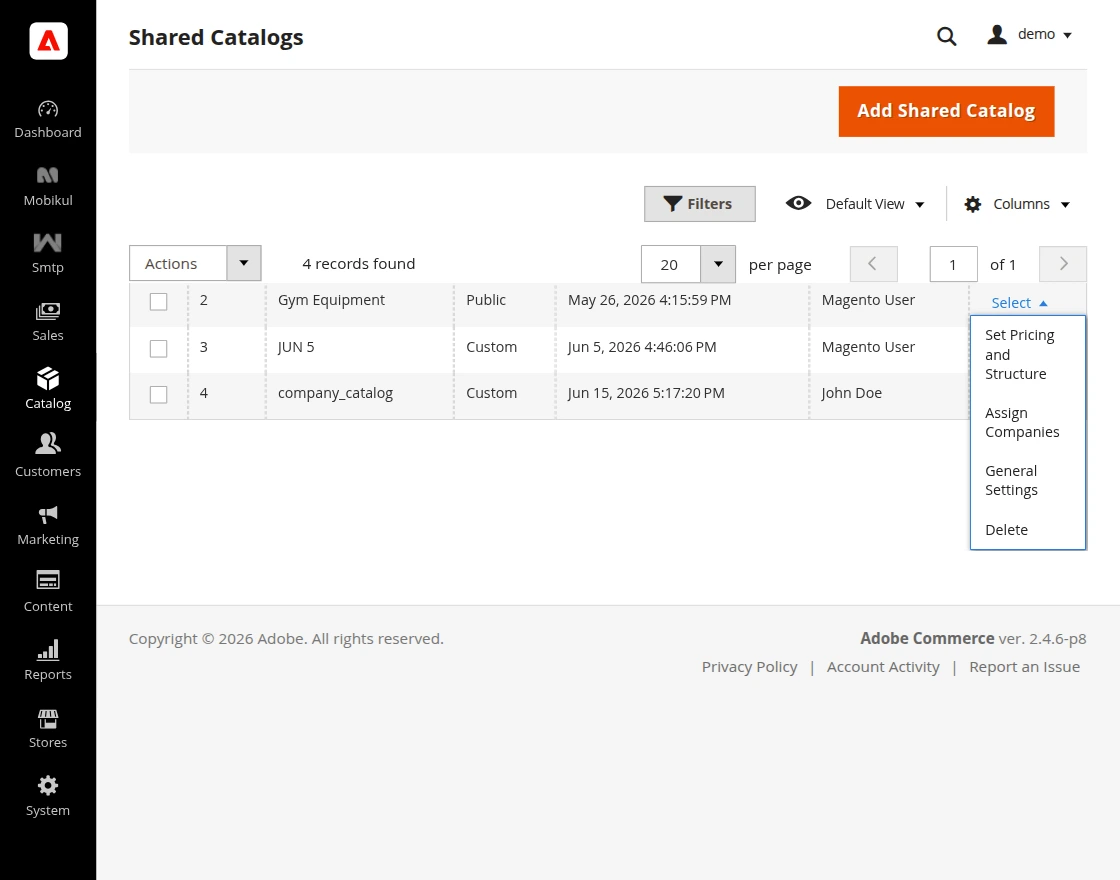
Shared Catalog Actions
Use the Select menu to manage a shared catalog after it is created.
Set Pricing and Structure
Configure the products available in the shared catalog and define custom pricing for assigned customers or companies.
Assign Companies
Associate one or more B2B companies with the shared catalog.
General Settings
Modify the shared catalog’s basic information.
Delete
Remove the shared catalog from the system. Any companies assigned to the catalog will lose access to its custom product assortment and pricing.
Set Pricing and Structure
Set Pricing and Structure is a two-step process for managing products in a Shared Catalog. It helps merchants control product organization and pricing.
Merchants can define custom pricing for assigned companies. Structure configuration determines which categories and products are available to each company.
This ensures flexible pricing and controlled product access for different businesses.
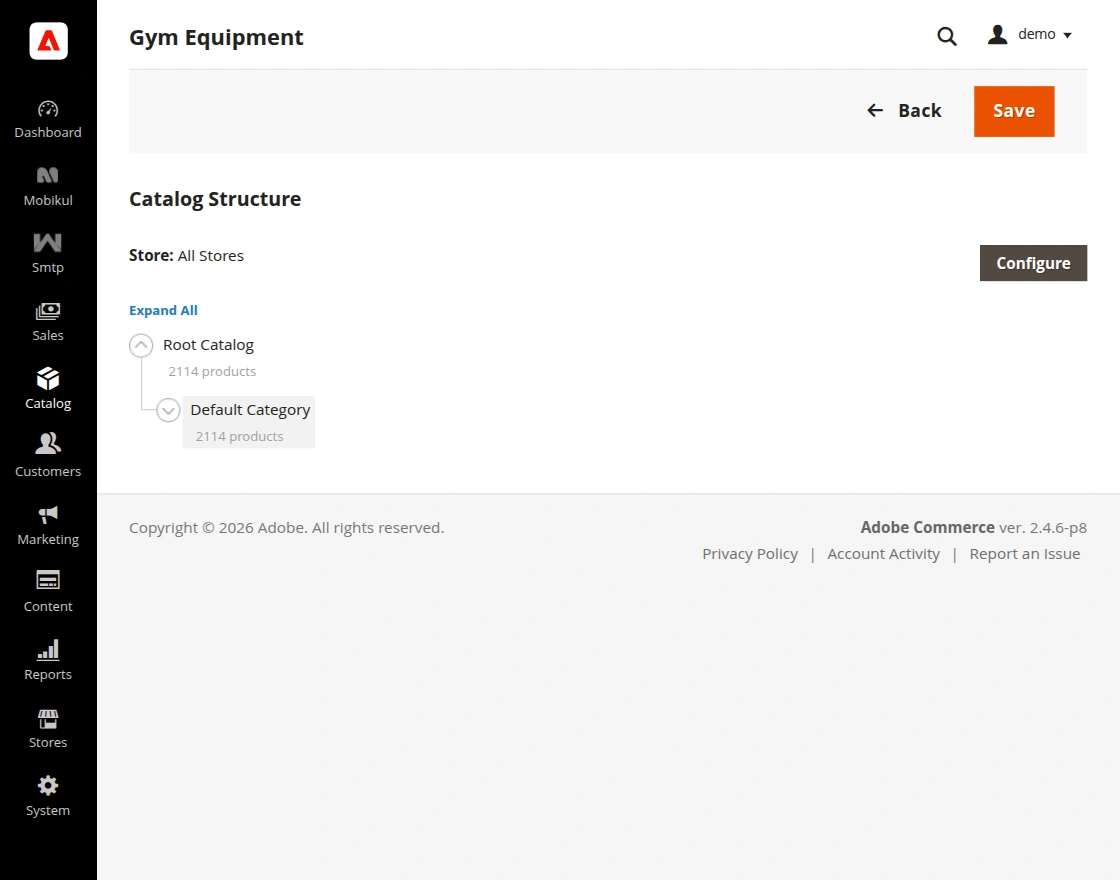
Configure the products available in the shared catalog and define custom pricing for assigned customers or companies.

Pricing Configuration allows merchants to offer custom prices, discounts, and quantity-based pricing for B2B customers.

Assign Companies
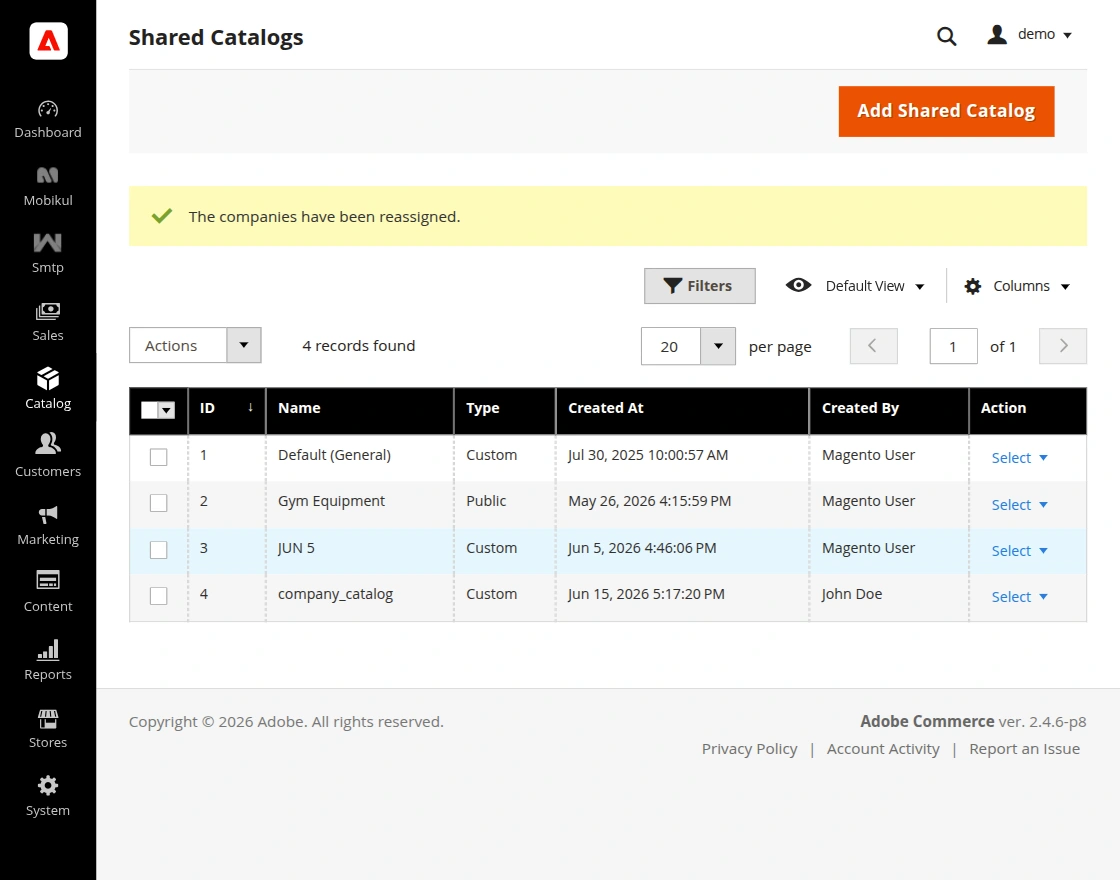
Assign Companies allows merchants to link one or more company accounts to a Shared Catalog, giving them access to a customized product assortment and pricing structure.

Adobe Commerce B2B Mobile App Storefront
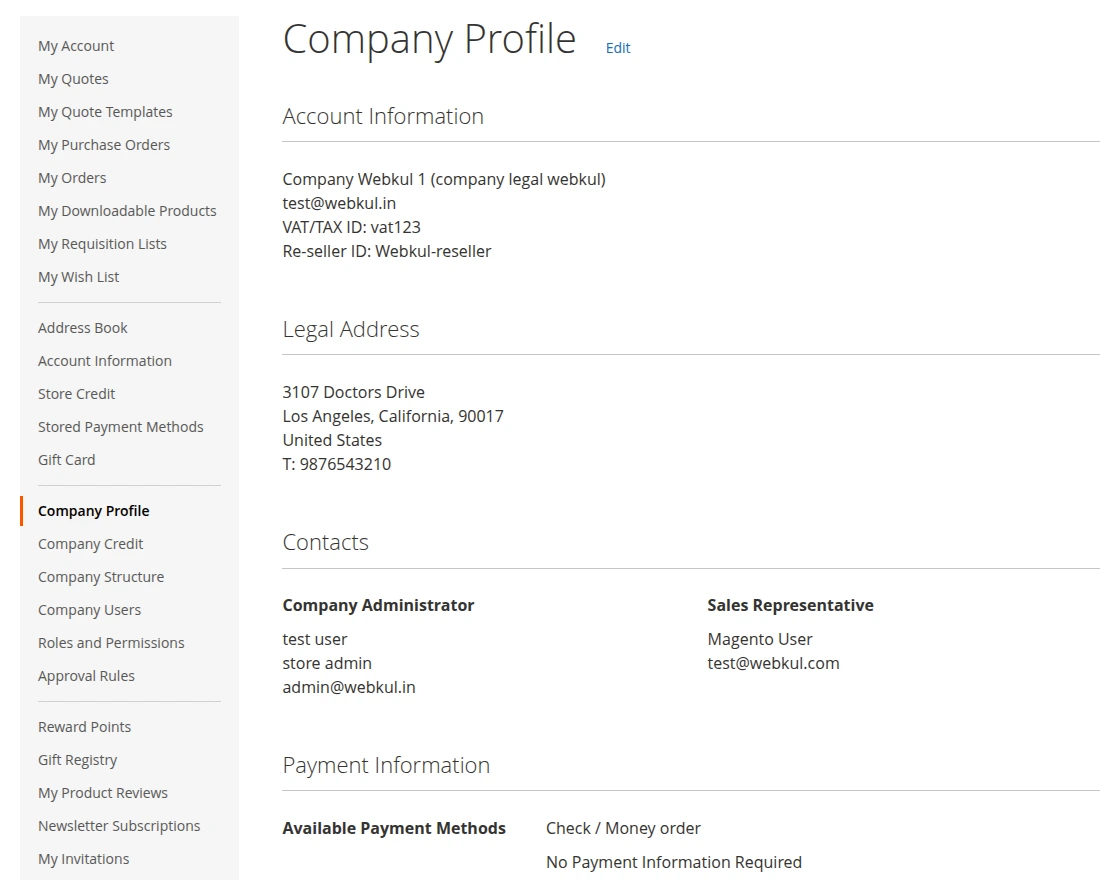
Company Account Dashboard
Allows company users to view and manage their organization’s information from the storefront.
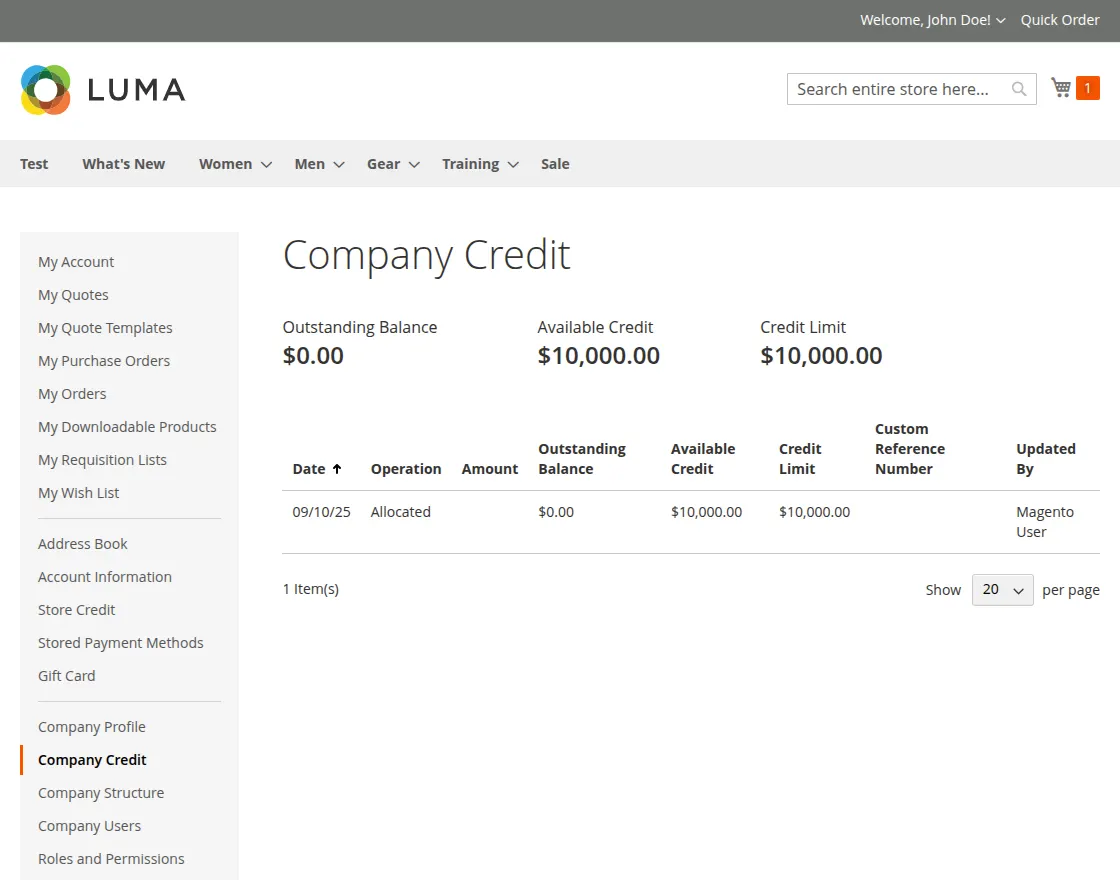
Company credit
Allows B2B customers to view and manage their company credit balances. It provides clear visibility of available credit.
Customers can make purchases using approved credit limits. No immediate payment is required for these transactions.
Company Structure
Enables company administrators to organize departments, teams, and users within the company account.
It provides a clear organizational hierarchy that helps manage user relationships, responsibilities, and approval workflows efficiently.

Company Users
Allows administrators to manage all users associated with the company account. It provides a centralized user management system.
Administrators can add, edit, and organize users easily.

Add New User
Allows company administrators to create and manage user accounts within the company structure.
- First Name – Enter the user’s first name.
- Last Name – Enter the user’s last name.
- Email – Specify the email address used for account access and notifications.
- Job Title – Define the user’s position within the company.
- Phone Number – Provide a contact number for business communication.
- Status – Specify whether the user account is active or inactive.
- Role – Assign a company role that determines the user’s permissions and access level.
Adobe Commerce B2B Mobile App – Roles and Permissions
The Roles and Permissions section allows company administrators to define access levels for different users within the organization.

Add New Role option allows company administrators to create custom roles for different users within the organization.

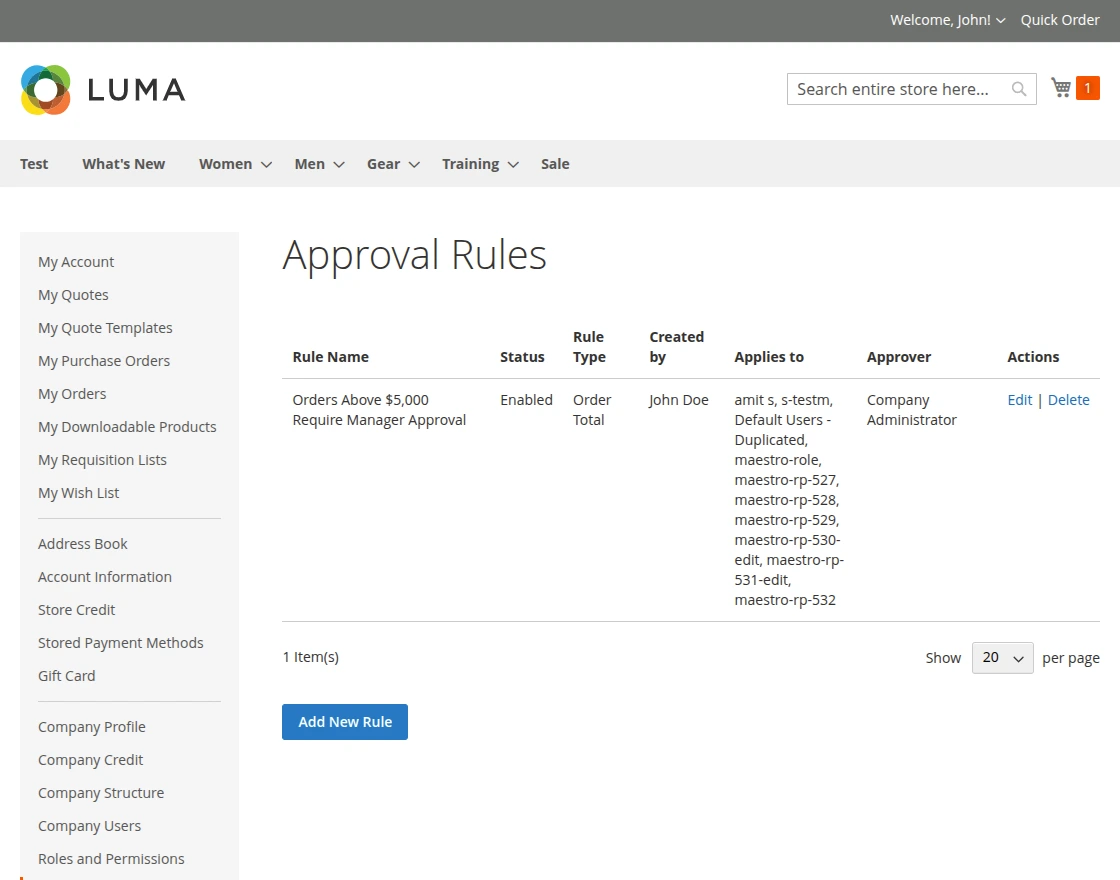
Approval Rules
The Approval Rules section allows company administrators to configure purchase order approval conditions.
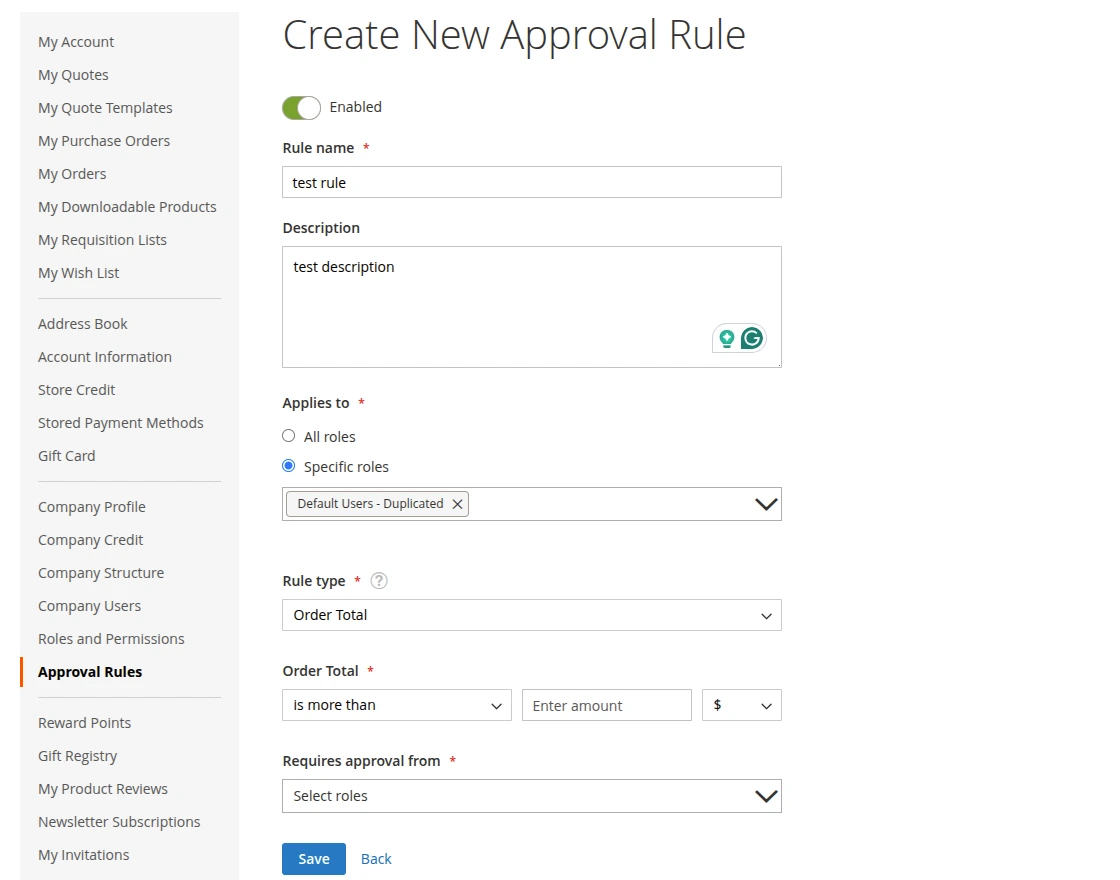
Create New Approval Rule
Create New Approval Rule form allows administrators to define approval conditions, assign approvers, and control how purchase orders are reviewed within the organization.
By configuring approval rules, businesses can automate purchasing approvals and ensure compliance with internal spending policies.
- Rule Name – Enter a unique name for the approval rule.
- Description – Provide a brief explanation of the rule.
- Rule Type – Defines the condition used for approval such as order total, quantity, shipping cost, or custom attributes.
- Operator – Defines the comparison logic used to evaluate conditions and trigger the approval workflow.
- Condition Value – Enter the amount or quantity that triggers the approval process.
- Applies To – Select the company roles to which the rule applies.
- Requires Approval From – Choose the user role responsible for approving the purchase order.
- Priority – Determines the order in which approval rules are evaluated.
- Status – Enable or disable the approval rule.
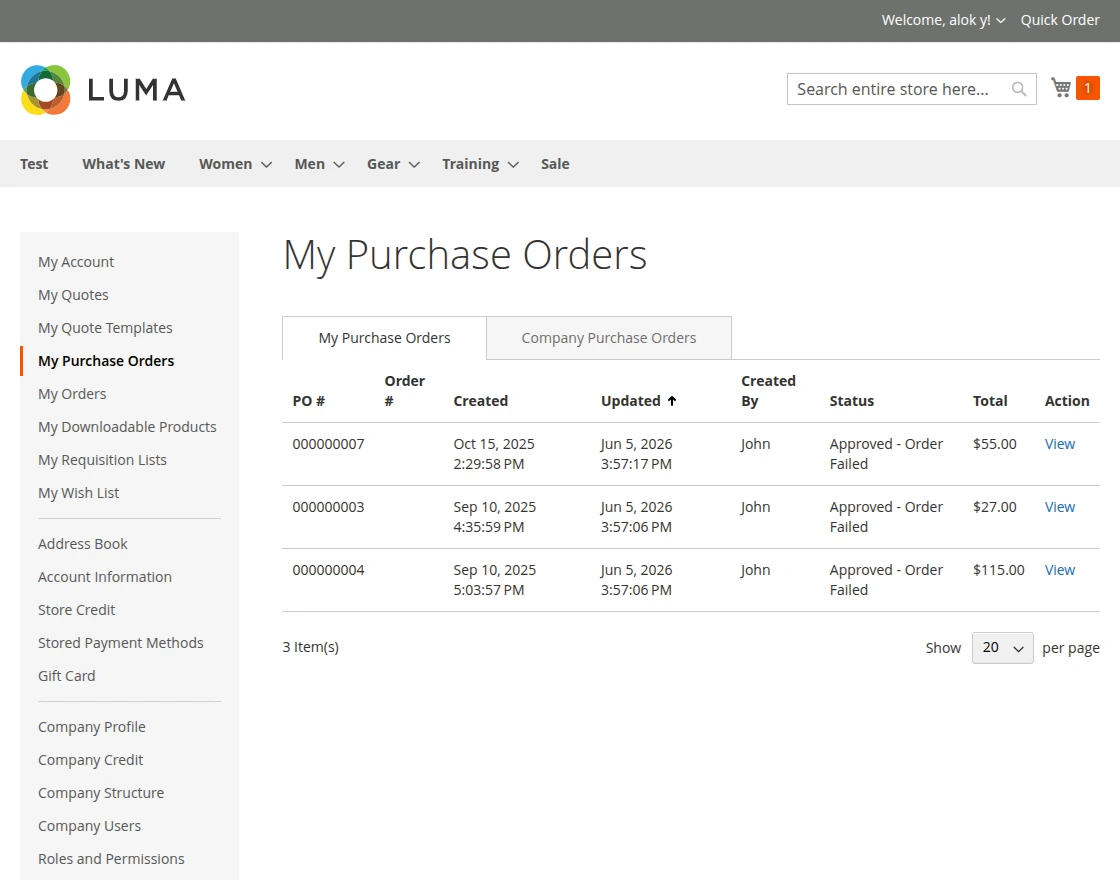
My Purchase Orders
All purchase orders in Adobe Commerce B2B follow a predefined approval workflow to ensure controlled procurement and policy compliance.
This structured approval process reduces errors, improves efficiency, and provides full visibility into approval status at every stage.
Once approved, purchase orders can be seamlessly converted into sales orders for faster processing and order fulfillment.
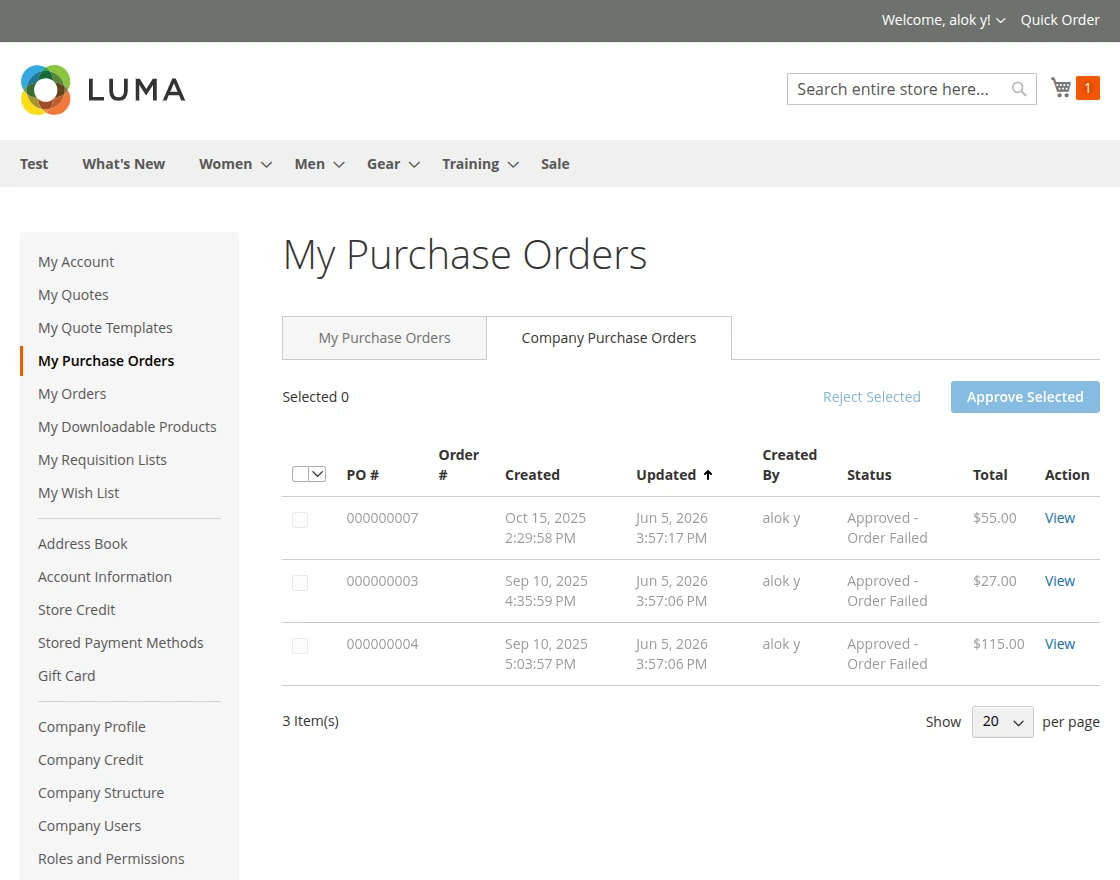
Company Purchase Order
Allows authorized users to view and manage all purchase orders across the organization.
It provides complete visibility into company-wide purchasing activities, helping administrators track approvals, monitor spending, and maintain purchasing control.
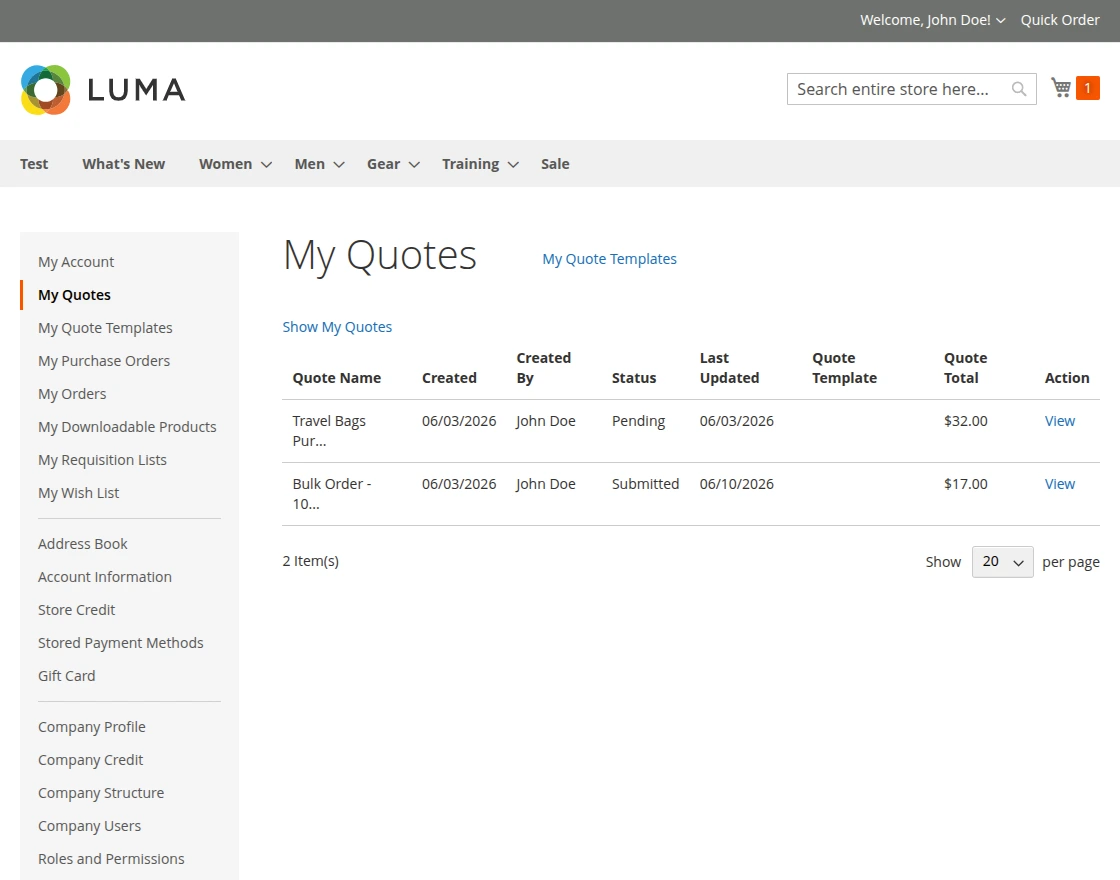
My Quotes
Adobe Commerce B2B Solution enables customers to manage quote requests and negotiate pricing directly with the merchant.
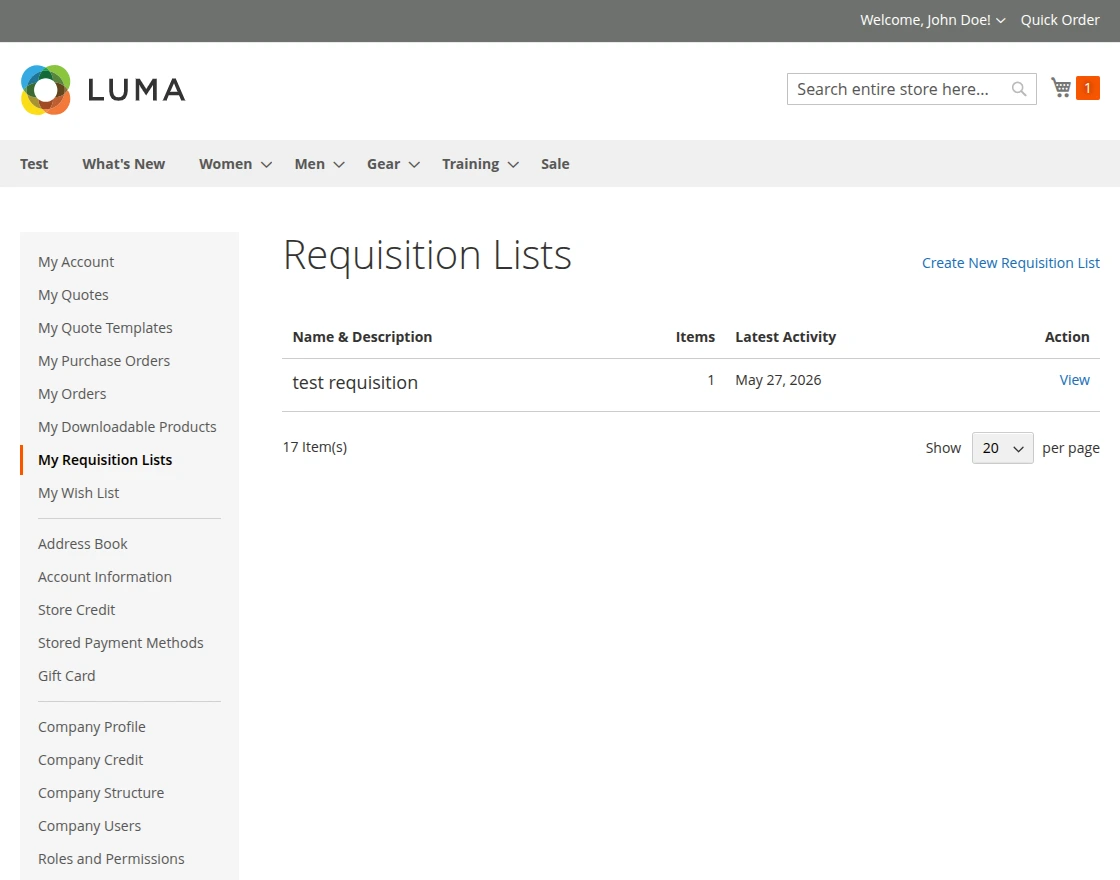
My Requisition Lists
Adobe Commerce Business helps B2B customers organize products into reusable shopping lists for faster and more efficient reordering.
Mobile App (End User)
Requisition Lists overview
Adobe Commerce Enterprise App provides customers quick access to all their saved purchasing lists from the mobile app.
Add New Requisition List:
List Name – Enter a unique name for the requisition list.
Description – Add optional notes or details about the list.


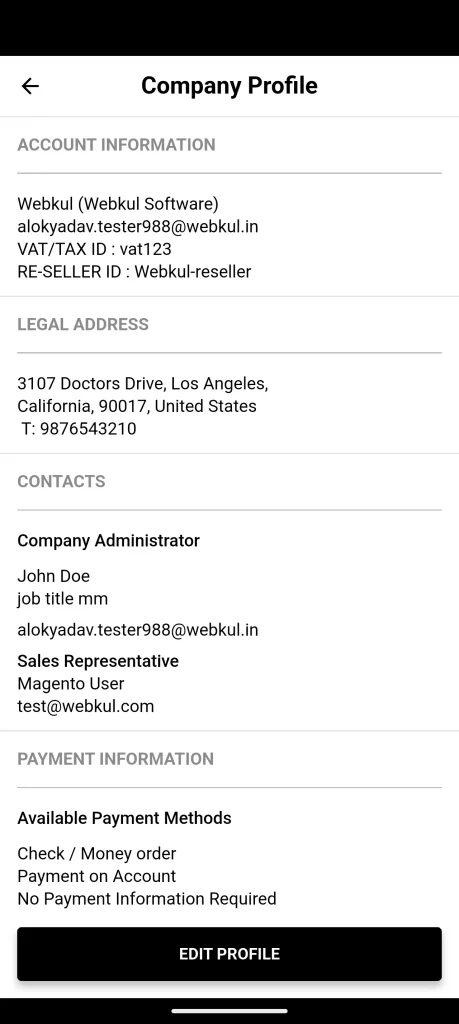
Company Profile
The Company Profile section in the mobile app allows users to view important company information from a single screen.
Company Structure
Mobile app allows users to view the organizational hierarchy of their company.

Company Users
Adobe Commerce B2B Mobile App allows administrators to view and manage all users associated with the company account.
Add User
To create new user accounts within the organization from the mobile app.
It enables administrators to assign roles, define permissions, and provide secure access to company resources and purchasing activities.


Roles & Permissions
The Roles and Permissions section in the mobile app allows company administrators to manage user access and responsibilities within the organization
Add New Role
To create custom roles for different users directly from the mobile app.
By assigning specific permissions to each role, businesses can control access to company resources, purchasing activities, approvals, and account management features.


Company Credit
Allows users to view their company’s available credit, outstanding balance, and credit limit.
It provides quick access to credit information, helping businesses monitor spending and manage purchases directly from their mobile devices.
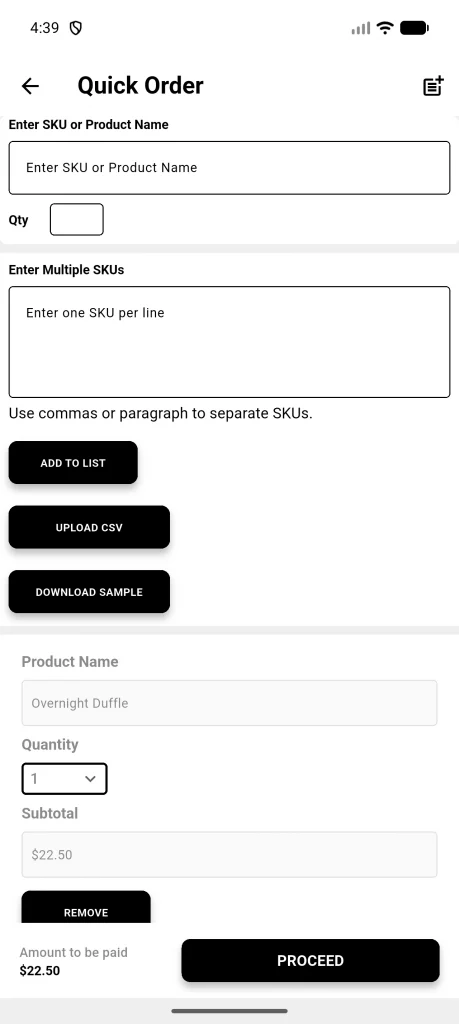
Quick Order
Adobe Commerce B2B app enables customers to add products to the cart quickly using product names or SKUs.
It simplifies bulk purchasing and repeat orders by allowing buyers to quickly search and add products without navigating multiple catalog pages.

Mobile Quotes
Enables customers to track, review, and manage quote requests from their mobile devices.
Mobile Quotes
My Quotes section in the mobile app allows customers to view and manage their quote requests directly from their mobile devices.

If you still have any issue feel free to add a ticket and let us know your views to make the module better https://webkul.uvdesk.com.
You may also check our top-quality Magento 2 Extensions.